
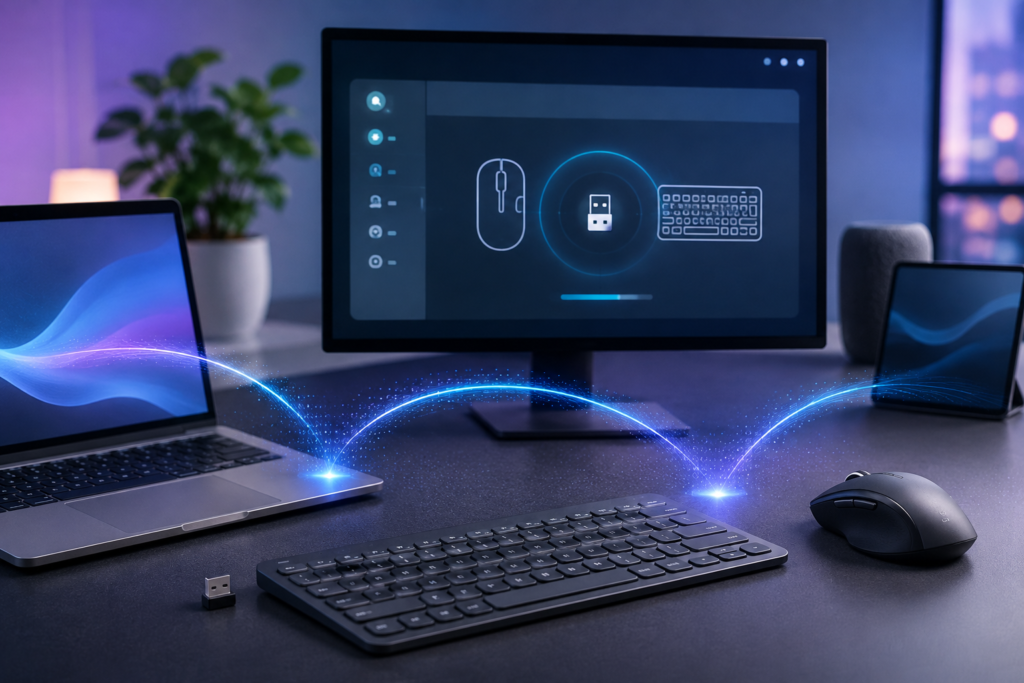
Logitech Unifying Software is a utility designed to connect compatible Logitech wireless devices, such as mice and keyboards, to a computer using a single Logitech Unifying USB receiver. This technology helps reduce the number of USB ports needed while keeping your workspace organized and convenient. With Logitech Unifying Software, users can pair compatible devices, manage connections, and enjoy a reliable wireless experience. It is particularly useful for people who use multiple Logitech peripherals at home, in the office, or while traveling. Logitech Unifying Software links up to six compatible Logitech mice and keyboards to one USB receiver. You plug in the receiver once. Every device then shares that single port. Do you need the tool in 2026? This guide answers that question and covers download, setup, sync, fixes, security, and alternatives.
What Is Logitech Unifying Software?
Logitech Unifying Software is a desktop utility for Windows and macOS. It adds, removes, and manages devices on a Unifying receiver. Logitech introduced the Unifying standard in 2009. The receiver uses a 2.4 GHz radio link with 128-bit AES encryption. Logitech lists a typical indoor range of about 10 meters (33 feet).
Have you run out of USB ports on your laptop? One Unifying receiver replaces up to six separate dongles.
The orange star logo marks a Unifying device. Look for it on the underside of your mouse or on the receiver itself.
Is Logitech Unifying Software Still Supported in 2026?
Logitech has stopped active development of the standalone utility. Version 2.52.33 is the last stable Windows release. Current receivers still work, and the software runs on Windows 10 and Windows 11.
Logitech now points users to Logi Options+. The newer app detects Unifying receivers and handles device sync. It also adds button remaps, gesture controls, and battery alerts.
Do you own an older mouse or keyboard? The legacy utility stays a practical choice for that hardware.
How Do Unifying, Logi Bolt, and Bluetooth Differ?
Logitech sells three wireless connection types. Each one fits a different user.
| Feature | Unifying | Logi Bolt | Bluetooth |
| Receiver | USB receiver | USB receiver | Built into most computers |
| Devices per receiver | Up to 6 | Up to 6 | Varies by device |
| Logo on device | Orange star | Green bolt | Bluetooth symbol |
| Security | 128-bit AES | Bluetooth LE security | Bluetooth security |
| Software | Unifying Software or Login Options+ | Login Options+ | Login Options+ or the operating system |
Logitech released Logitech Bolt in 2021 as a business-grade successor. A Bolt receiver connects only Bolt devices. A Unifying receiver connects only Unifying devices.
Check the logo before you download anything. An orange star confirms Unifying support. A green bolt calls for Logic Options+ and a Bolt receiver.
How Do You Download Logitech Unifying Software Safely?
Start at Logitech’s official support site. Search your receiver or device model on support.logi.com and open the Downloads tab. Logitech lists Windows and macOS installers there where available.
Third-party mirrors such as CNET Download, LO4D, and Softonic host version 2.52.33. Treat them as a last resort. Older mirror sites have bundled adware with legitimate installers, and Mac downloads carry the highest risk.
Follow the safe download routine below:
- Download from Logitech first.
- Right-click the installer and open Properties.
- Select the Digital Signatures tab.
- Confirm that the signer name shows Logitech.
- Scan the file with Microsoft Defender or your antivirus tool.
Would you rather skip the legacy route? Download Logi Options+ from Logitech instead. The app supports Windows 10, Windows 11, and recent macOS releases.
Is There a Logitech Unifying Software Web or Online Version?
Logitech offers Unifying Software as a desktop installer only. Only a desktop app talks to the receiver directly. Websites that advertise an online version usually push adware or fake installers. Download from Logitech and verify the file signature.
How Do You Install Logitech Unifying Software on Windows 10 and Windows 11?
The install takes under two minutes.
- Close open Logitech apps.
- Right-click the installer and select Run as administrator.
- Accept the license agreement and click Install.
- Plug the Unifying receiver into a free USB port.
- Open the software from the Start menu.
Windows loads the driver automatically. Restart the computer if the Device Manager lists the receiver as an unknown device.
How Do You Pair a Logitech Mouse or Keyboard With the Unifying Receiver?
Open the software and click Next. Switch the mouse or keyboard off, then switch it on again. The software detects the device within seconds.
Move the cursor or press a few keys to confirm the link. Click Finish to save the sync. Repeat the steps for each extra device, up to six in total.
You can also sync a device through Login Options+. Open the app, click Add Devices, choose Unifying Receiver, and power-cycle the peripheral. Which method feels easier to you?
Some devices include a Connect button on the underside. Press it after the software starts to force discovery.
How Do You Unpair a Device From a Unifying Receiver?
Open the software and click Advanced. Select the device and click Unpair. The receiver frees that slot at once. A freed slot accepts a new device immediately. Use this step when you sell a mouse or move a keyboard to another receiver.
How Do You Use Logitech Unifying Software on Mac?
Logitech offers a macOS build of the utility. Logi Options+ suits current Macs better. The newer app supports Apple Silicon chips. The legacy tool targets older Intel Macs.
Download the Mac installer from Logitech only. Unofficial Mac pages carry a higher adware risk. Grant Input Monitoring and Accessibility access in the Privacy & Security panel when macOS asks.
How Do You Use a Unifying Receiver on Linux?
Linux relies on community tools. Logitech’s own software targets Windows and macOS. Solaar is an open-source app that pairs devices, shows battery levels, and manages receiver slots. Install it through your distribution’s package manager.
The command-line utility ltunify offers a lighter option. Pick Solaar for a graphical interface. Pick ltunify for a terminal workflow.
Why Does My Logitech Unifying Receiver Lag or Disconnect?
Radio interference and weak batteries cause most connection problems. The 2.4 GHz band hosts Wi-Fi routers, microwaves, and Bluetooth devices, so congestion is common. Intel published a white paper in 2012 that linked USB 3.0 ports to noise in the 2.4 GHz band.
Try the fixes below in order:
- Replace the battery. A weak battery causes cursor stutter first.
- Switch ports. Plug the receiver into a USB 2.0 port or a short extension cable. A USB 3.0 port emits more noise in the 2.4 GHz band.
- Clear the signal path. Keep the receiver within one meter of your device. Metal desks and large monitors block the signal.
- Remove interference. Move Wi-Fi routers, microwaves, and other 2.4 GHz gear away from the receiver.
- Re-sync the device. Unpair it in the software, then pair it again.
- Update the firmware. Logitech offers a Firmware Update Tool for supported receivers.
- Test another USB port. A faulty port often mimics receiver failure.
Have you tried a different USB port yet? One port swap often clears dropouts.
Is the Logitech Unifying Receiver Secure?
Bastille Networks disclosed the MouseJack vulnerabilities in 2016. The flaws affected wireless mice and keyboards from several brands, and Logitech receivers appeared on the list. Logitech released firmware patches in response. Researcher Marcus Mengs reported additional Unifying weaknesses in 2019. Check Logitech’s security advisories for your receiver model.
Update the receiver firmware to close known gaps. Buy receivers from authorized retailers. Replace very old receivers that predate the patches.
Logi Bolt uses a newer security design. Choose Bolt if your workplace handles sensitive data.
Do You Need to Install Logitech Software at All?
Plug-and-play covers basic use. Windows, macOS, and Linux detect a paired mouse and keyboard on their own. The receiver ships pre-paired with the device in the box.
Install Login Options+ or Unifying Software when you want to:
- Add a second or third device to one receiver.
- Move a device to a different receiver.
- Remap buttons or adjust scroll speed.
- Check battery levels and firmware versions.
Casual users open the utility once. Power users return to it often.
Which Logitech Devices Work With Unifying Software?
Many Logitech products carry the orange Unifying logo. Popular examples include the M705 Marathon, M510, K270, K350, MK270, MK550, K400 Plus, and earlier MX Master models. Many Logitech wireless combo sets also ship with a Unifying receiver.
Newer flagship products moved to Bluetooth Low Energy or Logi Bolt. Check the product page or the device label to confirm compatibility. A Unifying receiver serves Logitech devices only.
What Are the Best Alternatives to Logitech Unifying Software?
| Alternative | Best for | Platforms |
| Login Options+ | Modern Logitech devices and customization | Windows, macOS |
| Logitech G HUB | Logitech G gamer devices | Windows, macOS |
| Solaar | Open-source device management | Linux |
| ltunify | Lightweight terminal control | Linux |
| Bluetooth connection | Receiver-free setup for one device | All major platforms |
Logi Options+ is the strongest overall replacement. The app updates regularly and supports Unifying and Bolt receivers. G HUB adds deeper RGB and macro controls for Logitech G users.
FAQs
Can you download Logitech Unifying Software for free?
Yes. Logitech distributes the utility free of charge. Download it from Logitech’s support site to skip bundled extras.
How do I install Logitech Unifying?
Run the installer, plug in your receiver, and open the app. Click Next, power-cycle your device, and confirm the connection.
What is Logitech Unifying Software used for?
The utility syncs, unsyncs, and manages up to six compatible Logitech devices on one Unifying receiver.
Do I need to install Logitech software?
Basic functions work right after you plug in the receiver. Install Login Options+ or Unifying Software to add devices or customize buttons.
Does Logitech Unifying Software work on Windows 11?
Yes. Version 2.52.33 runs on Windows 11. Logic Options+ offers a more current experience.
Can I connect a Logi Bolt device to a Unifying receiver?
Each standard pairs with its own receiver only. Bolt devices connect to Bolt receivers. Unifying devices connect to Unifying receivers.
How many devices can one Unifying receiver handle?
One receiver supports up to six devices at once.
Can I use two Unifying receivers on one computer?
Yes. Each receiver operates independently. Sync different devices to each one to expand your setup.
Can I replace a lost Unifying receiver?
Yes. Buy a new Unifying receiver, install the software, and sync your device again.
Conclusion
Logitech Unifying Software is a practical solution for users who want to connect multiple compatible Logitech wireless devices through a single USB receiver. It simplifies device management, saves USB ports, and helps create a cleaner, more organized workspace. However, it only works with devices that support Logitech Unifying technology; not all Logitech wireless products are compatible. Overall, it is a useful tool for improving convenience and efficiency when using compatible Logitech keyboards and mice.
USA Parameter is a digital publication and services website covering technology, AI, business, and digital marketing. It publishes informational articles and promotes SEO, guest posting, content writing, and digital solutions for businesses.