If you’ve searched for an “image stretcher,” you’ve probably landed in one of two very different worlds. Most people mean a digital tool that changes a picture’s dimensions — for memes, product photos, or fitting a graphic into a template. A smaller group means something completely different: physical stretcher bars used to mount a canvas print on a wooden frame. This guide covers both, plus every related question people typically search for: aspect ratio, distortion, AI expansion, Canva workflows, and how to shrink (or “squeeze”) an image instead of stretching it.
What Is an Image Stretcher?
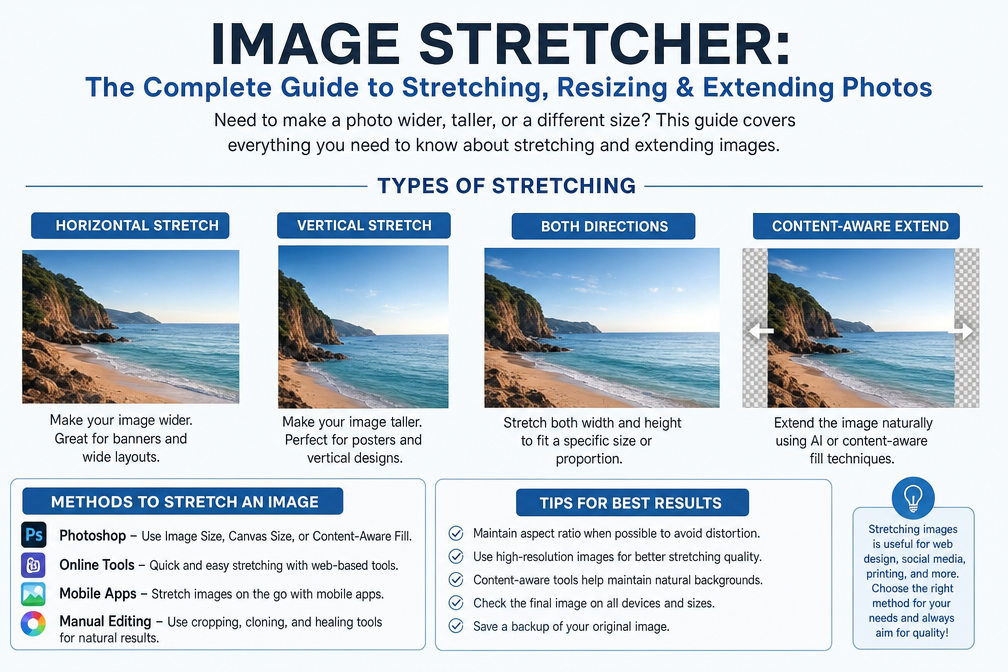
In the digital sense, an image stretcher enlarges or reshapes the pixels of a photo or graphic, often changing its width and height independently rather than scaling it proportionally. That’s useful when you need to:
- Make a meme. Stretched, warped photos are a meme format in their own right, and stretching also creates room for captions.
- Meet e-commerce size requirements. Marketplaces often demand fixed image dimensions, and a stretch tool lets a seller fit a product photo to spec without cropping out important details.
- Fit a template. Social posts, ads, and marketing layouts frequently need an image forced into a specific shape.
- Enlarge a small image for print. Upscaling lets a low-resolution photo hold up at a larger physical size without turning into a pixelated mess.
In the physical sense, a stretcher refers to the wooden frame and hardware — stretcher bars, canvas pliers, and corner keys — used by artists and framers to pull a printed or painted canvas taut so it can be displayed without sagging.
Digital Image Stretchers: Manual Distortion vs. AI Extension
There are really two different techniques hiding under the same search term, and knowing which one you need will save you a lot of trial and error.
1. Manual/Distortion-Based Stretching
This is the classic approach: you grab a corner or edge handle and drag, and the software forces the image into a new width or height, deliberately breaking the original aspect ratio. It’s fast and gives you full creative control, which is exactly why it’s the go-to method for memes and deliberately warped effects. The tradeoff is that faces, logos, and straight lines can look visibly distorted if you push too far.
Tools built for this kind of resizing include browser-based resizers for quick one-off jobs, and more full-featured editors when you need batch processing or finer control over which parts of the image get stretched.
2. AI Outpainting (Background Extension)
If your goal is a different aspect ratio without warping the subject, AI-powered outpainting is the modern fix. Instead of stretching existing pixels, the AI studies the edges of the photo and generates new, contextually matching background content to fill the extra space — so a portrait can go from square to widescreen and the person in it still looks normal.
Several apps now build this in as a headline feature, generating multiple candidate expansions so you can pick the cleanest result and then apply filters or other touch-ups on top.
Top Tools for Stretching, Resizing, and Extending Images
Here’s how the leading options stack up, based on what each one is actually good at:
| Tool | Best For | Standout Feature | Limitation |
| CapCut | Memes, social content, e-commerce, print-ready output | AI Expand generates four stretched variations and can export up to 8K resolution | Full workflow is desktop-based |
| Fotor | Bulk resizing with AI cleanup | Batch processing across many images at once | Slows down on very high-resolution files |
| Picsart | Independent horizontal/vertical stretching plus creative add-ons | Stretch axes separately, then add text, stickers, or filters | No support for niche formats like TIFF or RAW |
| insMind | Precision stretching with minimal distortion | AI-assisted control over exactly which regions get stretched | Over-stretching can still introduce distortion |
| BatchTools Pro | High-volume e-commerce or marketing teams | Fast bulk processing that preserves quality at scale | Advanced batch features are paywalled |
| Cloudinary Image Stretcher | Developers and programmatic resizing | API-driven, scriptable dimension changes for large catalogs | Requires technical setup, not a point-and-click tool |
| PineTools Resizer | Quick, no-frills browser resizing | Zero install, instant single-image edits | Manual only, no AI enhancement |
| Canva Magic Expand | Fast aspect-ratio swaps inside an existing design workflow | One-click AI generation tuned for social media dimensions | Best suited to simple backgrounds |
How to Stretch an Image in Canva or Adobe Express
This is one of the most common follow-up questions, because dragging a photo’s corner handle in these tools normally resizes it proportionally — it won’t stretch by default. To force a real stretch:
- Double-click the photo to enter its internal crop/frame view.
- Grab a corner or edge handle.
- Hold Shift while dragging to override proportional scaling and distort the image freely.
- Release once you’ve reached the shape you want, then click outside the frame to confirm.
If you’d rather avoid manual distortion altogether, Canva’s Magic Expand (or a similar AI extend feature) is the better choice for widening a background without warping the subject.
How to Squeeze (Shrink) a Photo
“Squeezing” is simply stretching in reverse — compressing an image’s width or height instead of expanding it. The same tools handle both directions:
- In manual editors, drag a handle inward rather than outward to compress that dimension.
- In AI-based tools, most “resize” panels let you enter target dimensions that are smaller than the original in one axis, achieving the same squeezed effect without needing a separate tool.
- For precise, repeatable squeezing (e.g., fitting many photos to the same undersized template), a programmatic option like Cloudinary is more reliable than dragging handles by hand.
Common Problems and How to Fix Them
- Distorted subjects: Push the stretch too far and faces or logos start to look warped. AI-assisted tools that recompute detail as they resize tend to hold up better than pure manual dragging.
- Broken aspect ratio: If you don’t mean to distort the image, lock the aspect ratio before resizing, or switch to an AI outpainting/expand feature instead.
- Pixelated edges: This shows up most after aggressive stretching. AI expand-style features tend to produce cleaner edges than a raw pixel stretch.
- Format compatibility: Not every stretcher supports every file type — RAW and TIFF in particular trip up some consumer tools, so check compatibility before you commit to one app for a bulk job.
- Slow or freezing performance: Large, high-resolution batches can bog down browser-based tools. Desktop software generally handles bigger files more smoothly.
Physical Canvas Stretchers (If That’s What You Meant)
If you’re actually trying to mount a printed or painted canvas rather than edit a digital file, “stretcher” refers to hardware, not software:
- Wooden stretcher bars — interlocking pine or fir strips with mitered corners that assemble into a frame without glue or nails.
- Canvas/stretching pliers — spring-loaded, wide-jawed pliers that grip the canvas edge so it can be pulled taut before stapling, without tearing the fabric.
- Corner keys — small wooden wedges tapped into the frame’s inner corners later on to re-tighten the canvas if it sags from humidity over time.
Frequently Asked Questions
Is there a way to stretch an image?
Yes — either manually, by dragging a corner handle (often while holding Shift in design tools like Canva), or with an AI-based tool that stretches or intelligently extends the image for you.
What is an image stretcher used for?
Most commonly for meme creation, fitting product photos to a marketplace’s required dimensions, adapting an image to a template, and enlarging small images for print without losing quality.
How do I squeeze a photo?
Use the same resizing tools you’d use to stretch an image, but drag inward or enter target dimensions smaller than the original along one axis, rather than expanding it.
Can I stretch images in Canva?
Yes. Double-click the image to open its crop view, then hold Shift while dragging a corner handle to distort it freely instead of resizing proportionally. For a non-distorting alternative, Canva’s Magic Expand feature extends the background using AI instead.
“USAParameter delivers reliable insights, practical guides, and up-to-date information on U.S. topics, helping readers make informed decisions with clear and trustworthy content.”